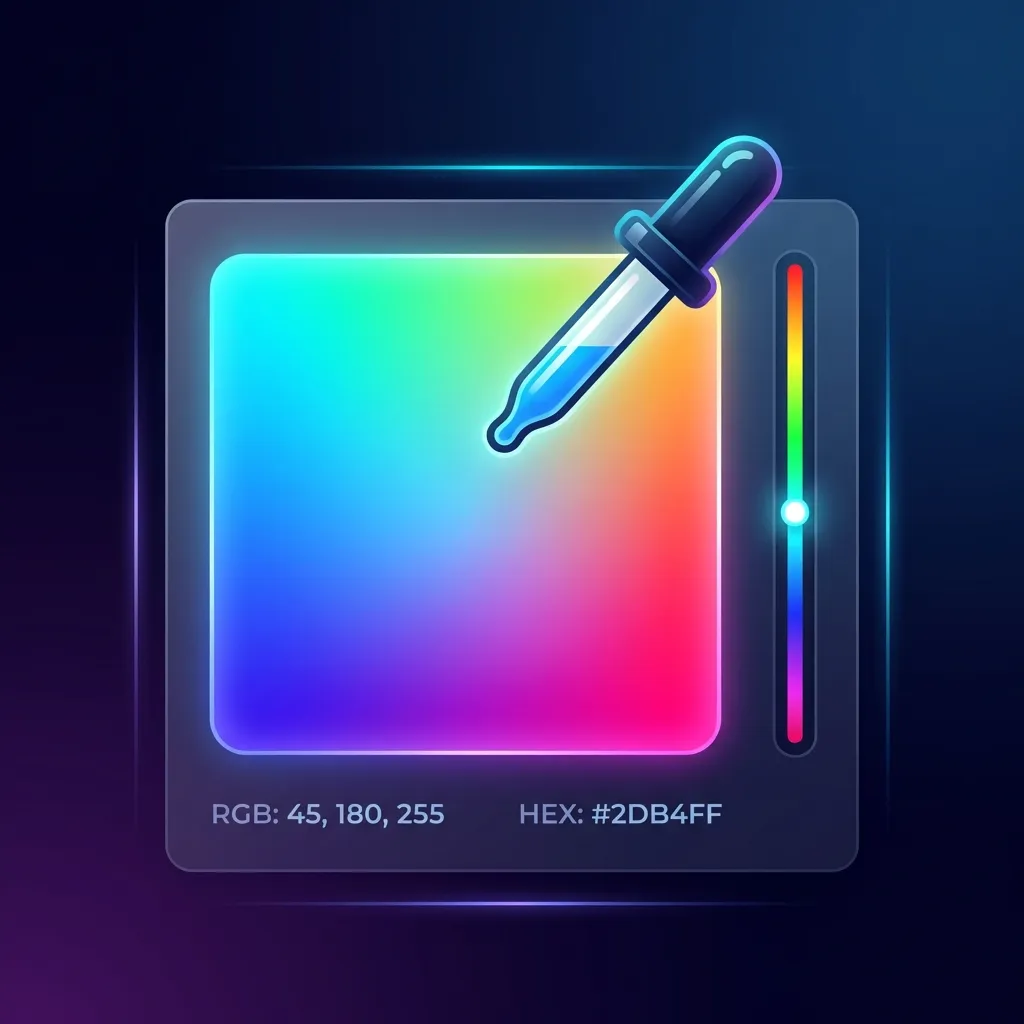
I once spent four days trying to build a custom, JavaScript-driven color picker component from scratch using a complex Canvas API and messy drag-and-drop math. I needed it for a client's custom CMS dashboard. When I finally finished and proudly showed it to the lead developer, he quietly deleted my entire 800-line React component, typed <input type="color"> into the HTML file, and saved it. It did exactly the same thing in one single line of code.
A color picker is simply a graphical user interface that translates human visual selection into mathematical computer code. Understanding how they actually operate under the hood is critical for deciding when to use a native browser tool versus when to rely on heavy third-party libraries.
The anatomy of a standard picker
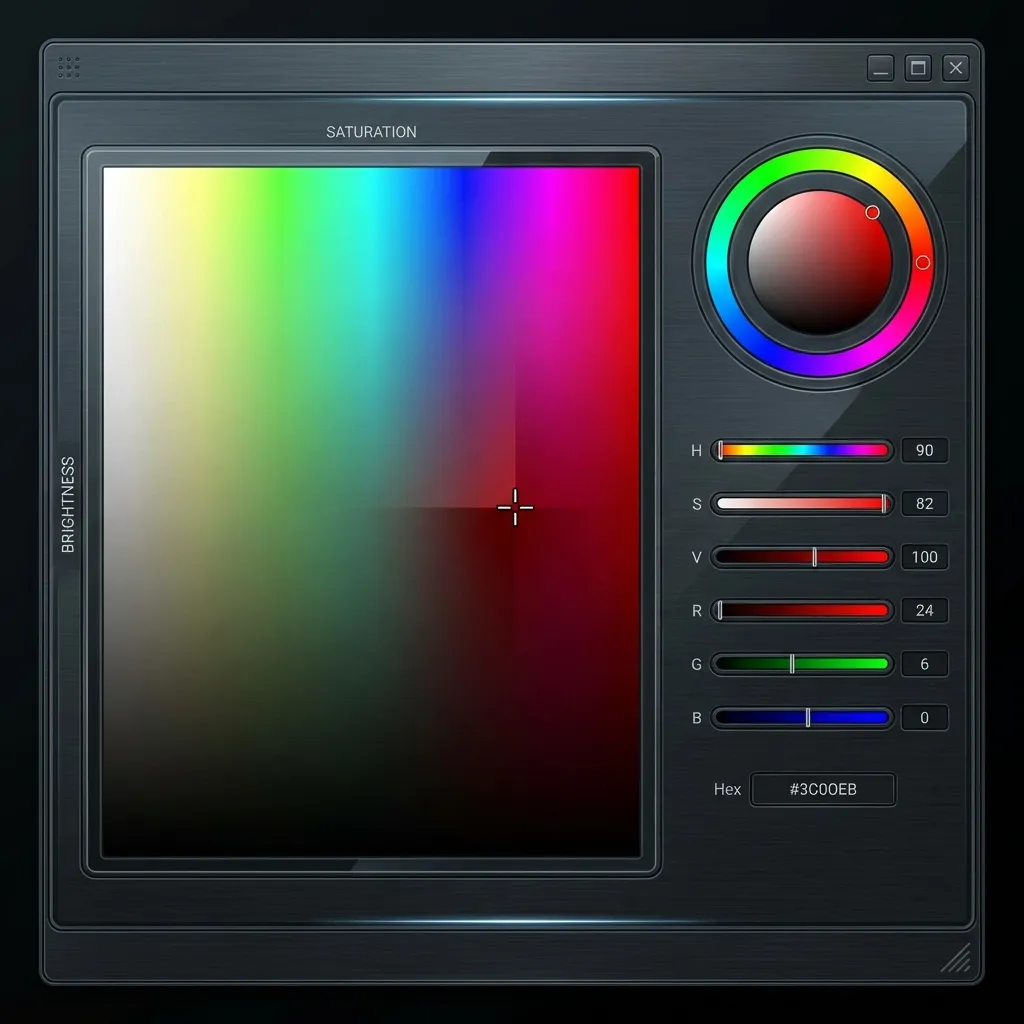
Almost every professional digital color picker (whether it's in Photoshop, Figma, or Chrome DevTools) operates using the exact same three-part structure: a hue slider, a two-dimensional saturation/lightness matrix, and an eyedropper tool.
The slider controls the Hue (the actual base color family, mapped from 0 to 360 degrees). The massive square area above it controls both Saturation (moving left to right) and Lightness (moving top to bottom). When you drag the little circle reticle into the top-right corner, you are mathematically instructing the computer to set Saturation to 100% and Lightness to 50%.
The dumb solution that works is completely abandoning the visual matrix and just typing the numbers into the input boxes directly. I think junior designers waste hundreds of hours a year randomly dragging that little circle around trying to find the "perfect" color. If you know the math, you just type it. Dragging the circle introduces human error; typing the numbers guarantees precision.
The native HTML5 color input
In 2026, there is almost zero reason to build a custom color picker for a standard web application. The native HTML5 <input type="color"> element is universally supported across all modern browsers.
When you click that input, the browser completely hands control over to the user's operating system. MacOS will open its native color utility. Windows will open its native picker. This provides an incredibly fast, highly accessible, zero-JavaScript user experience. The operating system handles all of the complex Canvas rendering and math, and it simply returns a perfectly formatted 6-character hex code (like #ff0000) directly to your form data.
(I actually strongly prefer using the native OS picker because it automatically gives the user access to their saved system-wide color palettes, which third-party JavaScript libraries physically cannot do due to browser sandbox security rules.)

The eyedropper security trap
The most powerful tool inside any color picker is the eyedropper, which allows you to sample a pixel directly from the screen. However, building an eyedropper on the web is incredibly restricted.
For years, you could not build an eyedropper in JavaScript because allowing a script to read pixels outside the browser window is a massive security and privacy violation. A malicious script could theoretically use an eyedropper to secretly scan your screen for passwords or personal information. The modern EyeDropper API fixes this by requiring explicit user interaction (a click) and completely abstracting the pixel-reading process away from the code. The developer simply asks the browser for a color, the browser puts the user in a safe "picking mode," and the browser returns the final hex code.
Stop installing heavy, bloated React color picker libraries for simple CMS inputs. Use the native HTML5 element. Let the browser handle the math, respect the user's native operating system preferences, and focus your development time on the logic that actually matters.