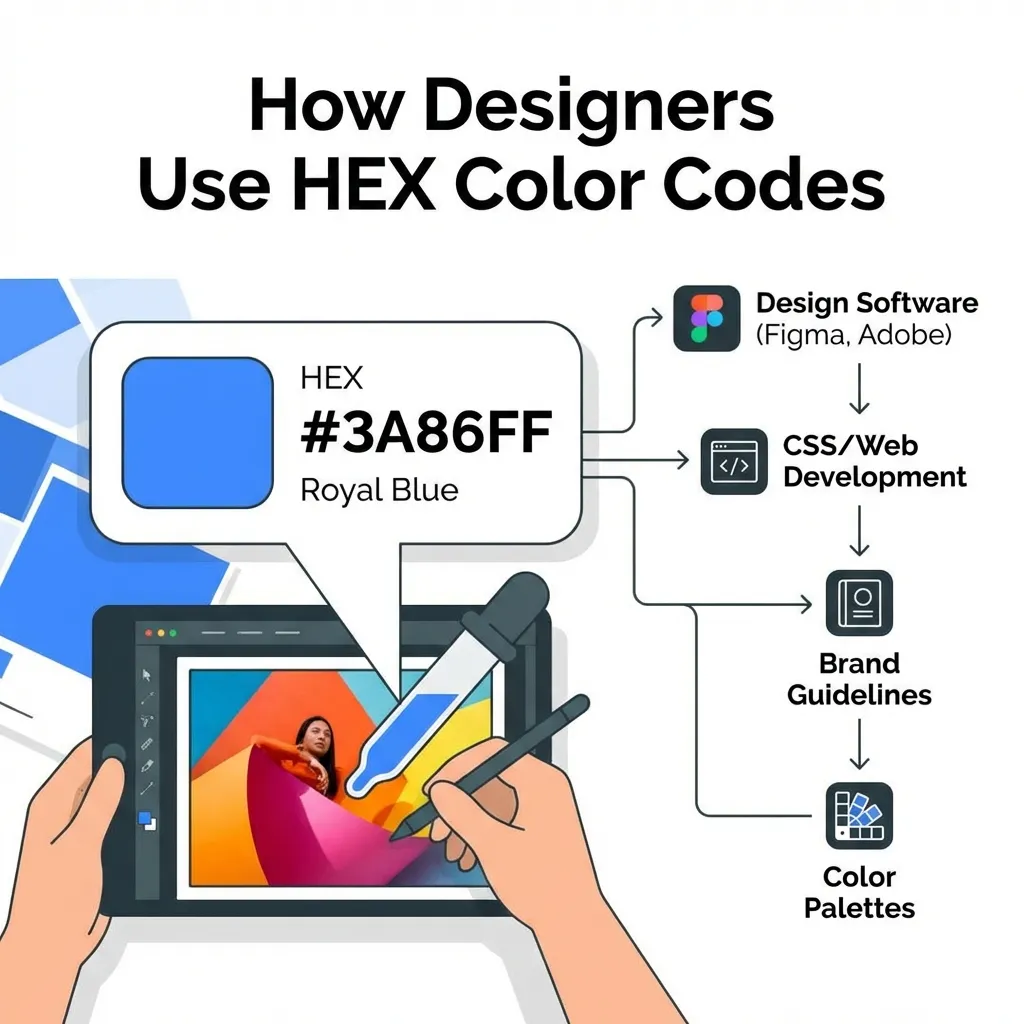
I wasted an entire hour last month trying to match the exact, specific red from a client's logo because the only file they sent me was a heavily compressed, low-resolution PNG embedded inside a PDF document. Every single time I used the eyedropper tool on the logo, it gave me a completely different hex code. I was pulling my hair out.
Picking exact, precise colors from compressed digital images is an absolute nightmare of compression artifacting, anti-aliasing, and color profile mismatches. If you don't know exactly where to click, you will extract the wrong color and ship an inaccurate brand guide to production.
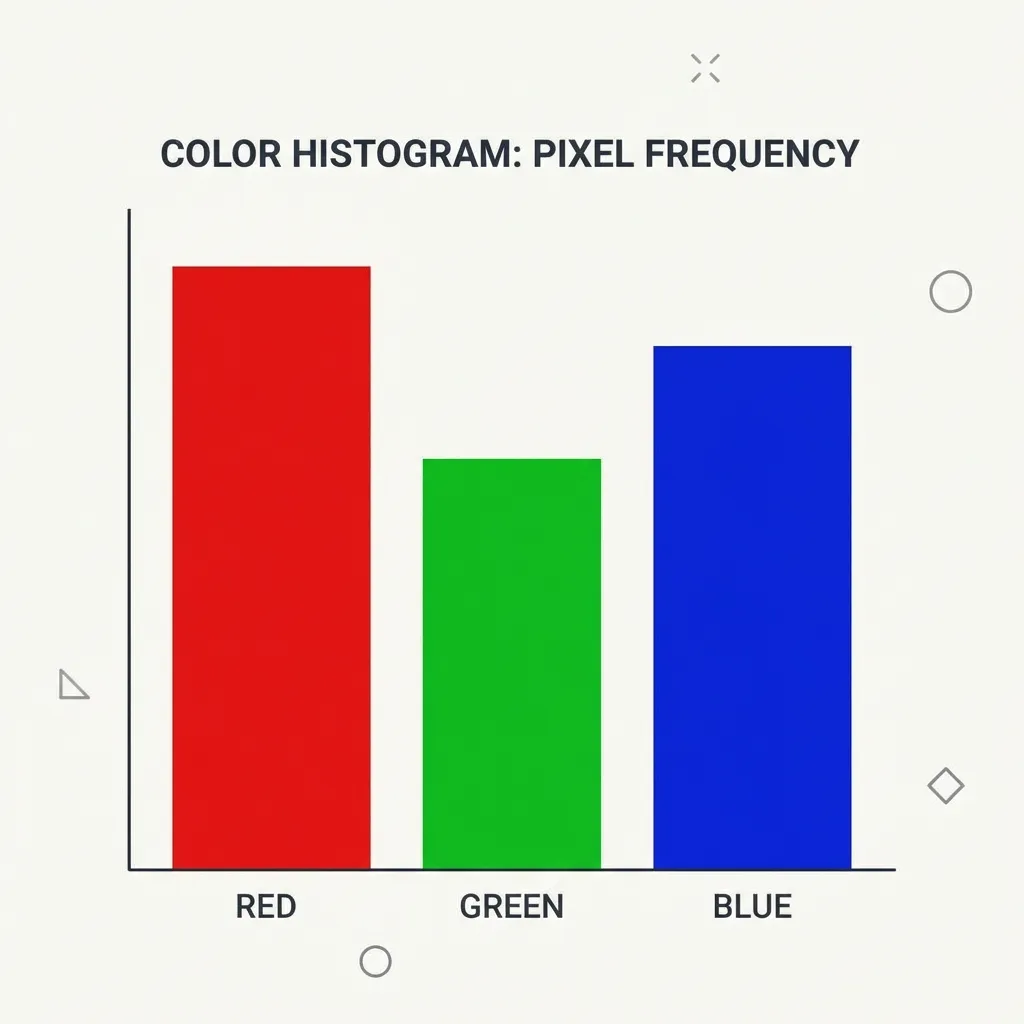
Avoid the anti-aliasing artifacts
When any vector logo or graphic is compressed into a raster format like JPEG or PNG, the computer tries to make the sharp, jagged edges look smooth to the human eye. It does this through a process called anti-aliasing, where it automatically generates hundreds of intermediary colors along the edge of the shape.
If you have a solid red logo on a pure white background, the edge of that logo is not actually red. It is a gradient of pinks, grays, and muddied whites. If you click anywhere near the edge of the logo with your color picker, you won't get the brand's red. You'll get a muddy, washed-out pink like #E5A3A3.
The dumb solution that works is completely ignoring the edges of the image. You must open the image in your design tool, zoom in to at least 800% magnification, and visually locate the absolute thickest, most solid, central mass of the shape. You must sample your color from the absolute dead center of the pixel mass, as far away from a contrasting edge as physically possible. I think 90% of wrong brand colors currently sitting in production codebases happen because a junior developer rapidly clicked a compressed anti-aliased edge pixel while trying to move quickly.
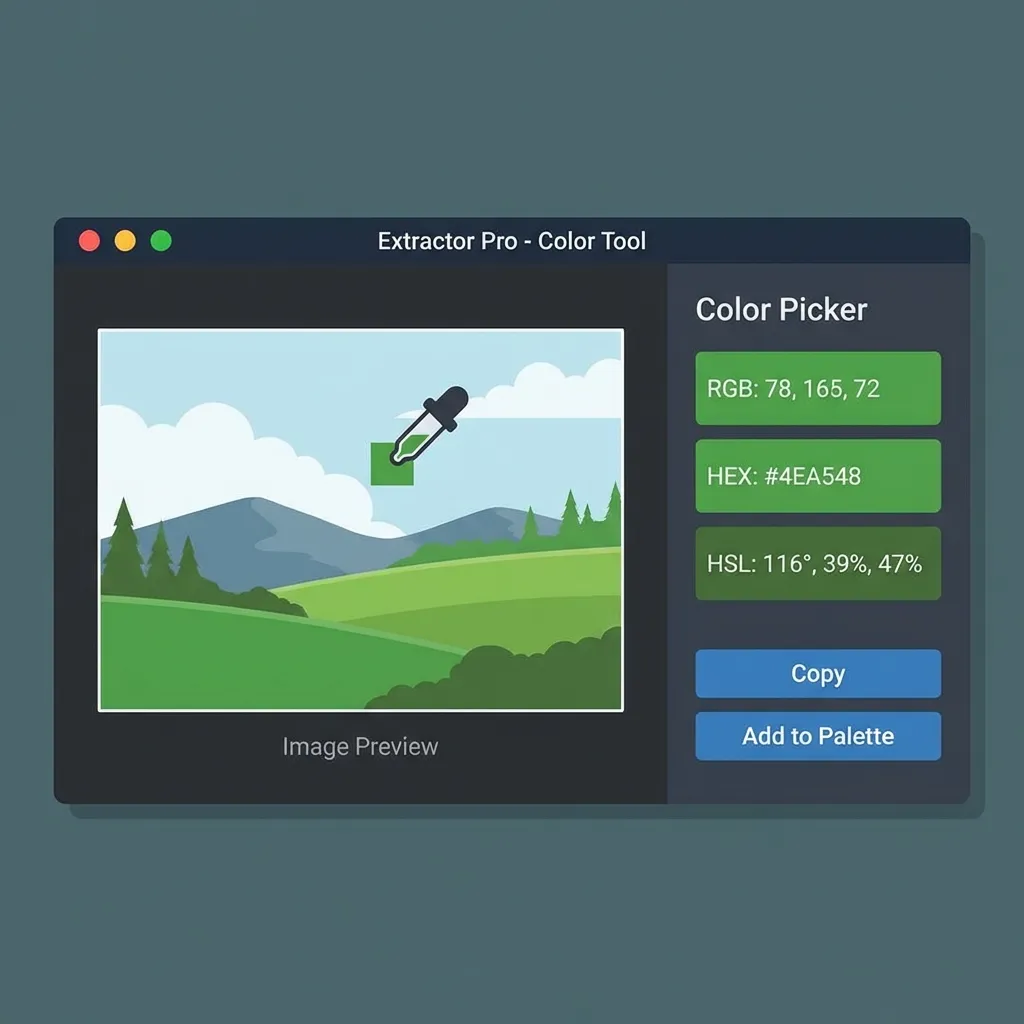
The terrifying color profile trap
There is no clean solution to color profile mismatches on the modern web; the mandatory workaround is aggressively forcing everything into the standard sRGB color space before you sample it.
If you use an eyedropper tool to pick a color from a photograph taken on a modern iPhone, that image is almost certainly using the advanced Display P3 color space. The P3 color space contains colors (specifically deep reds and vibrant greens) that physically do not exist in the standard sRGB space that older monitors use.
If you take that P3 hex code and drop it directly into a standard CSS file without declaring a color space, it will look completely wrong on a regular, non-Apple monitor. It will immediately lose its vibrancy and look washed out. (I actually bought an expensive, hardware-based screen calibrator tool because I got so incredibly paranoid that my uncalibrated monitor was lying to me about the hex codes I was extracting.)
Native browser extraction
If you absolutely must pick a color from an image rendered in the browser, do not use a screenshot tool. Screenshots apply their own color profiles and can shift the hex code. Use the native browser DevTools.
In Chrome, open the inspector, click any color swatch in your CSS to open the built-in color picker, and use the eyedropper icon inside DevTools to click the image on the page. The browser engine will sample the exact, raw CSS hex code as it is being rendered by the engine, completely bypassing your operating system's screenshot color profile interference. It is the only way to guarantee mathematical accuracy.